
The Object Panel
The screen you open on a file and stay in. What each section of the object panel tells you, and the order to read them in.
The object panel is the screen you open on a file and then live in for the rest of the investigation. It holds everything Stairwell knows about one object: what the file is, what the platform thinks of it, where your fleet has seen it, what resembles it, and what your team has already decided about it. Every hash in the product opens it, so learning to read it in order is the highest-leverage thing you can learn about the interface.
How do I open it?
Click any hash, anywhere. Search results, a threat report's match list, a variant row, an asset's file list, a notification: they all open the same panel on the same file.
It opens beside the list you came from, so you keep your place. Open it full width when you are working one file hard, and when you got here from search results, the chevrons at the top step you to the previous and next result without going back to the list.
What is in the header?
The fastest read in the product. Before you touch a tab, the header gives you the filename and hash, the file's verdict, your team's opinion if one is set, how many YARA rules matched, whether the file carries a code-signing certificate, and the file's binary image, the small square picture of its bytes.
The header is also where you act on the file:
- The opinion selector, to record your team's own conclusion. See Setting Opinions.
- Download, which gives you the file as a password-protected zip. The password is
infected, the convention malware repositories use so that a sample cannot be opened by accident or unpacked by a scanner in transit. - Share to another environment, if you work in more than one and need a file visible in a second one. See Environments.
- Lookups in external services, which open the same hash in VirusTotal, and in Mandiant Advantage where your organization has that enabled.
Right-clicking a hash anywhere, including here, opens the Stairwell context menu with the Workflows submenu, which is how you launch Run-to-Ground.
What is on the Summary tab?
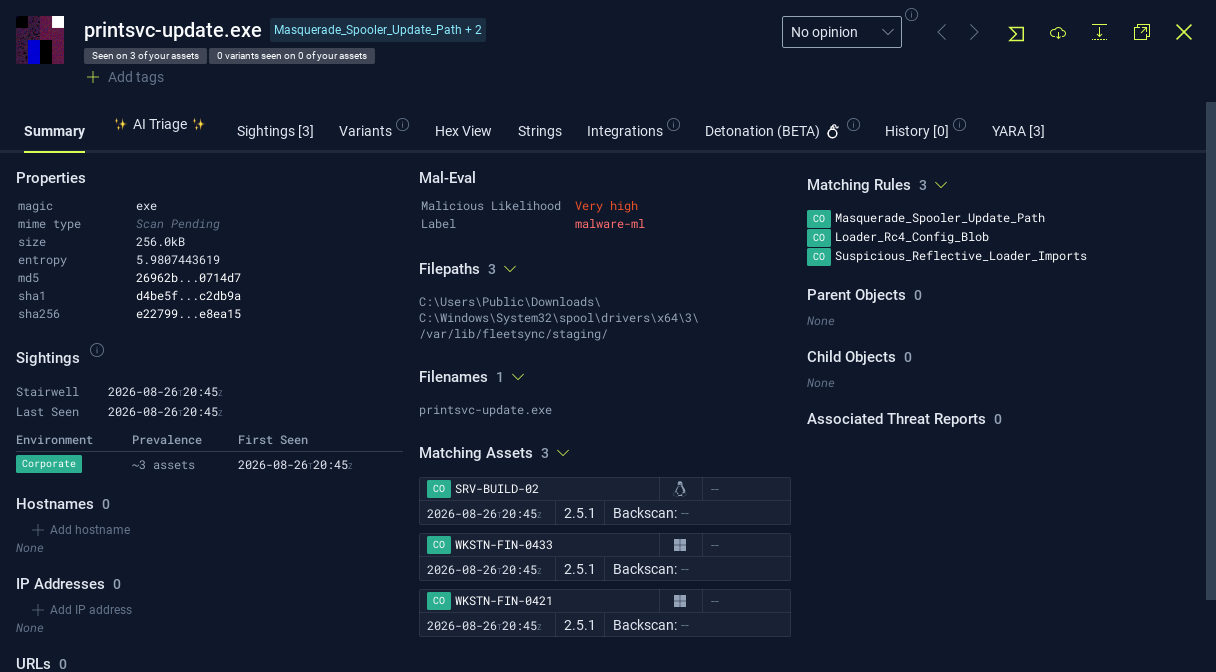
Everything you need for a first judgment, arranged in columns so the important things stay on the first screen at any window width.
- Properties. Hashes, size, file type, timestamps, and the PE version metadata when the file has it.
- The verdict, with its confidence and labels. This is the platform's single answer on whether the file is malicious.
- Matching YARA rules. Which rules hit, so you can see what the file was recognized as. A match is evidence, not a verdict: a rule written for an attacker's favorite administration tool matches your copy of that tool too. See What is a YARA rule?.
- Sightings. Where and when the file has been seen, with prevalence alongside so you know if it is rare. See Sightings and Prevalence.
- Certificates, when the file is signed, including whether the signature verifies.
- Related files. The parents this file came out of, such as the archive or installer that contained it, and the children extracted from it.
- Embedded data. The hostnames and IP addresses found in the file, which is where an investigation usually turns toward infrastructure. See Network Intelligence.
- Matching assets, the machines of yours that hold the file. See Assets.
- Threat report matches, if the file appears in intelligence available to your environments.
What are the other tabs for?
Not all of them appear on every file. The file-format tabs show up only for the formats they describe, and a few depend on what your organization has enabled.
| Tab | What it gives you |
|---|---|
| AI Triage | An analyst-grade write-up of this one file. See AI Triage |
| Sightings | The full sighting history, per asset and per time, rather than the summary |
| Variants | The files that resemble this one, ranked, each with its own picture. See Variants |
| Hex View | The raw bytes, with the extracted strings alongside |
| Strings | The strings pulled out of the file |
| PE Data, ELF Data, Mach-O Data | Structural detail for that executable format: sections, imports, exports, and the capabilities identified in the file |
| Integrations | What your connected external tools say about this file, such as EDR alerts |
| Detonation (BETA) | The hostnames and IP addresses the file reaches out to during behavioral analysis |
| History | Every recorded change on this object: who set an opinion, when, in which environment, and what it was before |
| YARA | The rule matches in detail, one entry per matching rule |
Two honest notes on that list. Detonation is a beta capability and Stairwell is not a full sandbox, so treat what it reports as a useful addition to static evidence rather than a complete behavioral profile. And the History tab appears when you have write access to an environment, because it is the audit trail for decisions your team can make.
In what order should I read it?
A sequence that works for an unfamiliar file, and stops early when the answer arrives.
- Header. Verdict, opinion, rule matches, and the picture. Plenty of files are settled right here, either because your team has already judged this one or because it is plainly ordinary.
- Prevalence, on Summary. Common everywhere is usually infrastructure. Rare, and present on few of your machines, is where the interesting files are.
- Sightings. One asset or a hundred is the difference between a contained event and a spreading one.
- AI Triage, when you still do not know what the file is. It is faster than reading strings yourself, and it tells you what to go look at.
- Variants, when the file is a dead end on its own. This is where one hash becomes the family it belongs to.
- Run-to-Ground, when you need the blast radius: what else landed on those machines alongside this file, including the things nothing flagged.
What should I read next?
- Variants and Sightings, the two questions most investigations need answered together.
- Run-to-Ground, the workflow that scopes an incident from a single hash.
- What Stairwell Knows About a File, for what every tab on this panel contributes and what is derived versus remembered.
- What Are Hilbert Curves?, for the picture in the header that most people never learn to use.
Updated 2 months ago