
Hunting and Search
One search bar covers files, hostnames, and IP addresses. Learn what it accepts, which query language to use, and how to paste a whole report into it.
Search is the front door to everything Stairwell holds. One bar accepts a hash, a filename, a query in a filter language, a question in plain English, or an entire threat report pasted in as unstructured text, and it answers across your own files and the global corpus at once. This page covers what the bar accepts and when to use which form; the query languages have pages of their own.
What can I put in the search bar?
Four kinds of input, and the bar works out which one you gave it.
- An indicator. A SHA256, SHA1, or MD5 hash, a hostname, or an IP address. This is the fastest path and the one to use when you have one thing to look up.
- A filter expression. A condition on an entity's fields, written in CEL, which is the default query language, or in StairQL, the compact prefix form. This is what you use for a hunt rather than a lookup.
- A question in plain English. In beta, translated into a StairQL query before it runs, so you can see and correct what it decided you meant.
- A pile of unstructured text. Paste a whole report, an email, or a web page, and Stairwell pulls the indicators out of it.
The language selector sits at the left edge of the bar. CEL is the default; StairQL and the plain-English mode are enabled per organization, so if you do not see the selector, ask Stairwell support whether they are available to you.
How do I search a whole threat report at once?
Paste it in. This is the highest-value trick in the product and almost nobody discovers it on their own.
- Open the report, the advisory, or the alert email you were sent.
- Select all of it and copy it. The whole page is fine; you do not need to extract anything.
- Paste it into the search bar and press Enter.
Stairwell reads the text, finds the hashes, hostnames, and IP addresses in it, handles defanged indicators such as hxxp:// and example[.]com without you cleaning them up first, and searches for all of them at once. The results come back grouped by kind, with your own files, the global corpus, hostnames, and IP addresses each on their own tab. When exactly one thing matches, it opens that result directly.
An eighty-indicator report becomes one paste and one read. What you do next is usually Run-to-Ground on whichever hash came back present, because the report's own indicator list is never the whole story.
If you would rather bring the report in as a durable object with its own match tracking, import it instead of searching it. See What is a threat report?.
What are the tabs above my results?
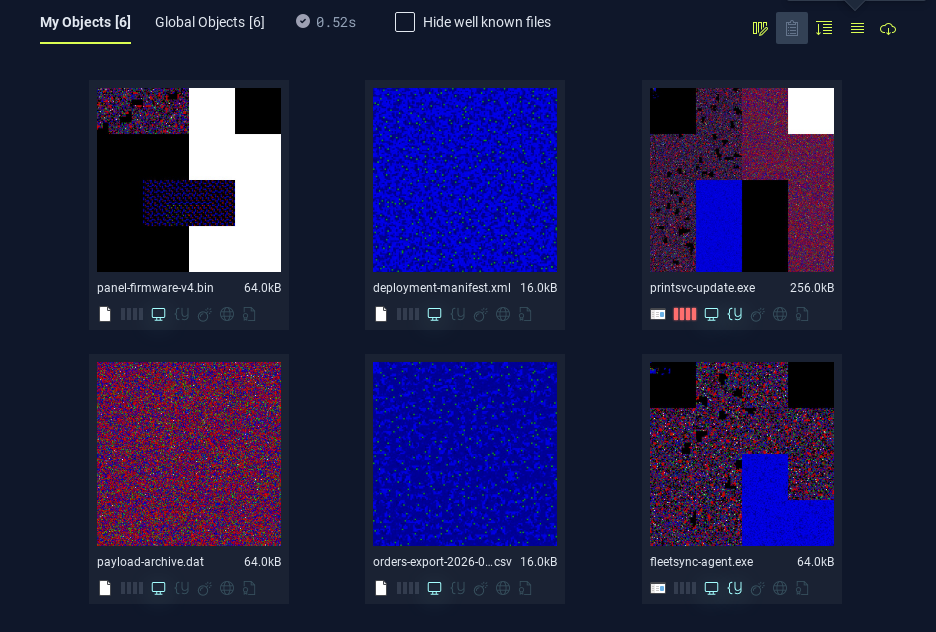
They are the entity you are looking at, and they matter more than they look.
| Tab | What it searches |
|---|---|
| My Objects | Files in environments you can read |
| Global Objects | Files across the global corpus |
| Hostnames | Hostname entities |
| IPs | IP address entities |
The pair at the top is the two-corpus relay in its plainest form. My Objects answers "is this in my fleet", which is the exposure question. Global Objects answers "does the world know this file", which is the context question. A hash present globally and absent from your fleet is intelligence. A hash present in your fleet and nowhere else in the world is the one to worry about, because bespoke tooling is by definition rare.
A query only returns results on the tab whose entity it names. A query written about rules will not return anything while you are looking at objects, which is the single most common reason a correct-looking query comes back empty. See Network Intelligence for what the hostname and IP tabs give you.
How do I hunt rather than look up?
A hunt is a query you can rerun, so write it to be reread.
- Start from a hypothesis, not a hash. "Unsigned executables in a system directory that almost nobody else has" is a hunt. "This hash" is a lookup.
- Write the narrowest true condition first, then loosen it. Starting broad and filtering down means reading a lot of rows you were always going to discard.
- Add rarity early. Prevalence is what turns thousands of rows into a handful, and it is nearly always the right second clause.
- Judge the noise as you go. When a legitimate tool keeps appearing, mark it Trusted rather than adding another exclusion to the query. The next hunt starts cleaner and so does everybody else's. See Setting Opinions.
- Save the query when it works. Favorite it from the bar, and it comes back for you and for whoever is on shift next. Saved searches are managed from your settings.
- Pivot from the result, not from the query. Anything in a result set opens its panel, and from there variants, sightings, and Run-to-Ground carry the investigation.
The search landing page keeps a set of example queries for exactly this reason: starting from one that nearly does what you want is faster than writing one from nothing. See Example Queries.
Which query language should I use?
Both reach the same data. Pick by what you are doing.
- CEL is the default and the one every part of the product understands. Use it when you want an explicit condition on a named field, when you are building something another tool will consume, or when you are following a link from elsewhere in the product. See CEL Query Language.
- StairQL is shorter to type and easier to read back in a runbook, and it has prefixes for things CEL makes you spell out, such as relative time and file-type groupings. Use it for interactive hunting. See StairQL.
What should I read next?
- CEL Query Language, the default filter language and its full field list.
- StairQL, the compact form, for hunting by hand.
- Example Queries, for queries worth stealing.
Updated 2 months ago